



Assigning Role Access in ZIMS
Enabling a staff person as a ZIMS User will assume that they have access to the email address provided for their account.
ZIMS utilizes a secure log-on system called Auth0
and this requires that they can access emails sent from ZIMS for password access, reset’s and more.
Until you assign a Role to your staff, they will have no access to ZIMS. These Roles can be Species360 managed template roles or custom roles that you have created for your institution. How you assign the role is the same for each type.
Hidden Role Rights for Local Administrators
Hidden Role Rights for Medical Administrators
Assigning Roles
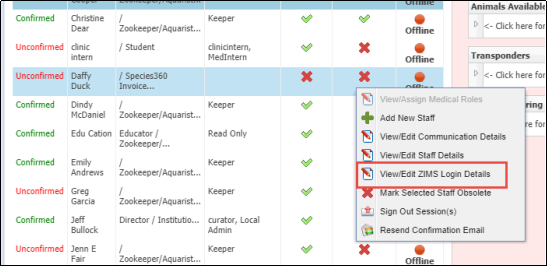
To assign a ZIMS role go to Start > Institution > My Institution > Staff grid. Highlight the staff member and select View/Edit ZIMS Login Details from the Actions menu. Note that the View/Assign Medical Roles is not activated. That is because you must first assign access to the Husbandry module before you can assign access to the Medical module. This can be a read only role for Husbandry if you want.

1. Tick the checkbox next to ‘ZIMS User’ to create a ZIMS login for this Staff Member at your institution. This will unlock the fields below that were previously greyed out. It will also prefill the email field with the email address that was provided when adding the staff member. They can change this in ‘My Preferences’.
2. To assign roles to a user you must highlight a role in the ‘User Role’ list by clicking on it.
3. Then click the arrow pointing right to add to the ‘Selection’ list.
4. Any Roles in the ‘Selection’ list are roles that are currently active for that user.
5. Click Save. The user will now be sent an email
support@species360.org
with a link to create a password. This link expires after one hour.
Password rules
When creating or updating a password, commonly used terms and personal information aren’t allowed. If a password includes something that can’t be used, Auth0 will provide a message to help guide you in choosing a more secure option. Passwords must be a minimum of 12 characters. Passwords will not expire.
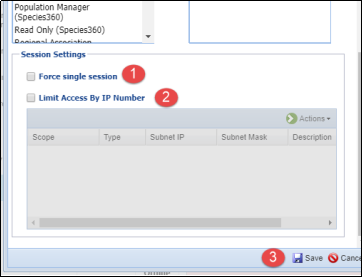
At the bottom of the screen you can:
1.Force single session so the User can be logged into ZIMS at only one computer at a time.
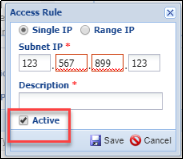
2.Limit Access by IP Number should you want to restrict ZIMS access to only limited computers such as at work.
3.Don’t forget to Save.
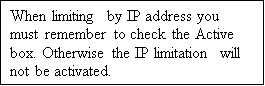
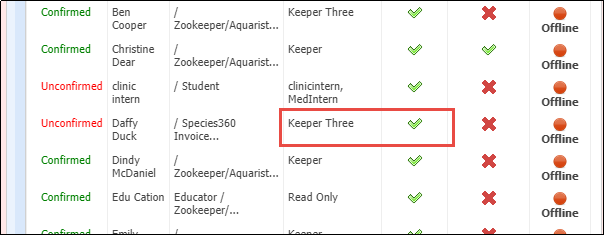
The staff member now has a ZIMs Role assigned and is checked as a ZIMS User.
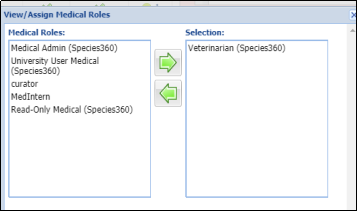
Now when you open the Actions menu for the staff member the View/Assign Medical Roles is activated.

To assign a Medical Role you must be assigned a Medical Admin Role. Move the desired role from the Medical Roles to the Selection and Save. When assigning Medical Roles, you do not have the option to Force Single Session or limit by IP number, that is only available in the Husbandry module Roles.
What are Hidden Role Rights?
There are some functionalities that Local and Medical Admin Roles have access to that are not listed in the Role Selector. These are called “hidden Role rights”.
Features only available to Local Admin
Animal and Enclosure Lists
Can edit and delete all Animal and Enclosure Lists, including those created by other Users, even if they aren't marked sharable/editable by the list creator.
Locked Out Users
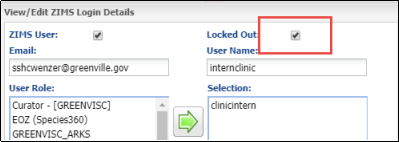
Can unlock users if they have been locked out
From the View/Edit ZIMS Login Details screen, uncheck Locked Out if checked:
Manage ZIMS Users
Can see which users are online/offline at their institution under the My Institution > Staff grid:
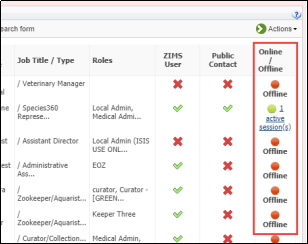
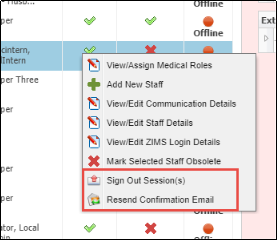
Can sign out a user's session and resend confirmation email under the My Institution > Staff grid:
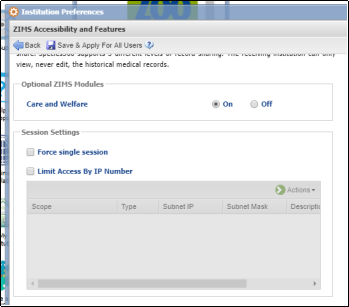
Institution Preferences - ZIMS Accessibility and Features
Can turn on/off Advanced Access Management Features
Can turn on/off Accessibility for External Sharing
Can turn on/off Provisional Data Entry
Can turn on/off display medical weights in husbandry record
Can turn on/off the Care and Welfare module.
Can see/edit Session Settings.
o Force single session limits Users access to ZIMS to only one computer at a time. (NOTE: this can also be done at the individual Staff member level).
o Limit Access by IP Number limits ZIMS access to only those IP addresses indicated (NOTE: It is recommended to limit by IP access at the Staff member level and not at the Institution level as you might lock yourself out!).
Note Templates
Can edit/delete any locally created Note Templates including those created by other Users, even if they aren't marked sharable/editable by the list creator. Species360 global templates cannot be edited or deleted.
Husbandry and Aquarist Daily Log Templates
Can edit/delete any Husbandry Log or Aquarist Daily Log, including those created by other Users, even if they aren't marked sharable/editable by the log creator.
Features only available to Medical Admin
Pharmacy Inventory
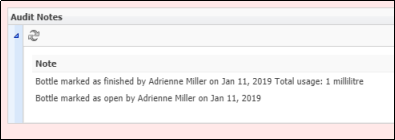
Reopen a bottle that has been marked as finished in the pharmacy inventory.
An audit note is generated.
Necropsy
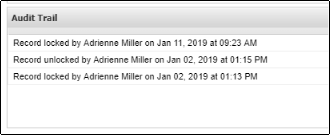
- Unlock a locked necropsy record.
- An audit note is generated.
Institution Preferences - ZIMS Accessibility and Features
- Can turn on and select level for Medical Records Sharing
Other topics:
|
|
|
|
|
|
|
|
|
|
|
|
|
|
|
|
|
|
|

Revised 7 October 2025
It is the mission of Species360 to facilitate international collaboration in the collection and sharing of information on animals and their environments for zoos, aquariums and related organizations.
www.Species360.org – Global Information Serving Conservation