



Creating and Managing Staff and ZIMS users
An over-arching help document where information can be found for adding Staff, creating ZIMS users, as well as managing account details such as passwords, usernames and email addresses in the future.
Topics
Adding Users
Managing account settings for a ZIMS user – Local Admin Management
Managing Account settings – User Management
Update Password – Login screen
Unique email addresses
Associated help document
ation
Adding Users
Local admins have the permissions to add Users to their institution.
To add a User:
1. Start Menu > Institution > My Institution > Open the Staff box.
2. Click Actions.
3. Click Add New Staff, and a pop-up box will open.
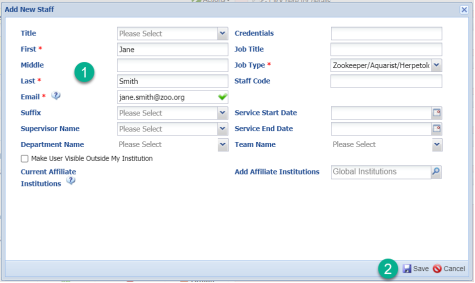
1. Complete any information marked with a red asterisk *, it is important that each staff member has a
unique email address
.
2. Clicking Save will load a pop-up box with the following message:
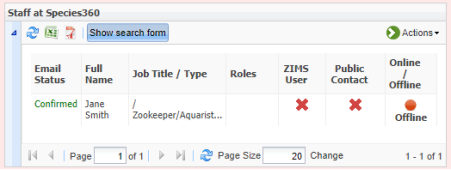
If you select ‘No’ the staff member will be sent an email from
support@species360.org
to validate their email address.
If you select ‘Yes’ the user will be sent an email from
support@species360.org
to create a password, this will automatically validate the email address too.
If you selected ‘Yes’, the next step in creating a user is to assign a user role. This determines which data the user will be able to access when they log in to ZIMS.
Follow the steps below to complete this next stage.
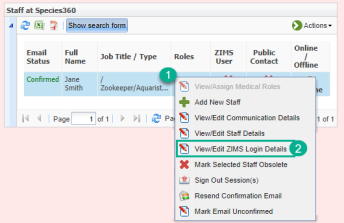
1. Right click the relevant staff member in the staff grid.
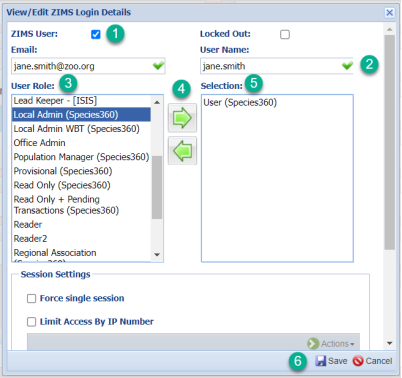
2. Select ‘View/Edit ZIMS login details’ and another pop-up box will open:
1. To assign roles to a user you must highlight a role in the ‘User Role’ list by clicking on it.
2. Then click the arrow pointing right to add to the ‘Selection’ list.
3. Any Roles in the ‘Selection’ list are roles that are currently active for that user.
4. Click Save. The user will now have access to ZIMS, within the confines of the role they were assigned. For more information on roles, see
this help document.
NOTE: If you had selected ‘No [this staff member will not be a ZIMS User]’ at the previous stage, but later assign roles to this staff member, they will be sent an email to create a ZIMS password once you save the roles assigned.
Managing account settings for a ZIMS user – Local Admin Management
As a Local Admin you can update various information for ZIMS users, including changing their associated email address, username and send a reset password link.
Change Email address
- Start > Institution > My Institution > Staff box
- Right click the relevant ZIMS users name and select View/Edit Staff details.
- Change the email address.
- Click Save. The user will be sent a confirmation email from support@species360.org to the updated email address. They will need to click the confirmation link in the email to confirm this update.
Reset Password
- Start > Institution > My Institution > Staff box
- Right click the relevant ZIMS users name and select View/Edit ZIMS login details.
- Click the ‘Reset Password’ button next to Save.
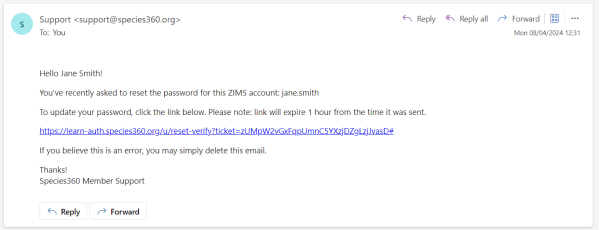
- The user will now be sent an email support@species360.org with a link to create a password. This link expires after one hour.
Password rules
When creating or updating a password, commonly used terms and personal information aren’t allowed. If a password includes something that can’t be used, Auth0 will provide a message to help guide you in choosing a more secure option. Passwords must be a minimum of 12 characters. Passwords will not expire.
Managing Account settings – User Management
Each ZIMS user has the ability to change various information associated their account.
Users can do so by going to the Start Menu > My Preferences > Account Settings.
In the Account Settings menu, a ZIMS user can update their associated:
- Password
- Change default institution (if they are assigned to a Parent institution with multiple child institutions)
Update Password – Login screen
If a user forgets their password, or the reset password link in the email from
support@species360.org
has expired before they click it, it is also possible to reset a password from the login screen.
- Enter Username and click ‘Continue’.
- Click the ‘Forgot Password?’ link
-
Click Continue on the next screen, and an email will be sent to the email address associated with the username, with instructions to reset your password.
Password rules
When creating or updating a password, commonly used terms and personal information aren’t allowed. If a password includes something that can’t be used, Auth0 will provide a message to help guide you in choosing a more secure option. Passwords must be a minimum of 12 characters. Passwords will not expire.
Unique email addresses
When adding new staff into your organization in ZIMS, the email address you supply must be unique (two staff members cannot share the same email address) and the email address must be valid (the staff person will receive a ‘confirmation email’ from ZIMS to ensure the account is valid and active).
For entries that are only Staff listings (the staff person will never log into ZIMS) the email confirmation is important but not required. For any staff that are also ZIMS Users (staff who log into ZIMS) the email confirmation is required before they will be allowed to log in.
As Local Admin you can resend the email confirmation link.
Head to the Start Menu > Institution > My Institution > Staff Box
Right click the relevant staff member in the list and select ‘Resend email confirmation’ from the drop-down menu.
What if my users need to share an email address (e.g. all keepers use the same address keepers@OurZoo.org?)
-
A free solution is available via a google email account.
- Sign up for a GMAIL account (example: ourzookeepers@gmail.com)
- Set it up to forward to your shared email address
- Test send email to the gmail address to ensure it is forwarding to your shared account
-
Update your users in ZIMS using the following gmail trick to provide them with a unique email address. Add a “+” after the email address you chose and the @gmail.com to have an infinite amount of email addresses forwarding to your shared account.
Ex: ourzookeepers+SALLYKEEPER@gmail.com, ourzookeepers+JONNYKEEPER@gmail.com, ourzookeepers+ECT@gmail.com - A variation of this trick is available for Yahoo and Hotmail/Outlook as well.
Associated help documentation
- Adding and Editing Staff in ZIMS
- Assigning Role Access in ZIMS (create ZIMS user)
- Logging into ZIMS via Auth0
Revised 16 January 2026