



How to Update Your Association Member List in ZIMS
A guide for regional association members
This guide explains how to add or remove member institutions from your association’s list inside ZIMS. Keeping this list current ensures your member institutions are correctly connected to your association.
Index
This guide covers the following topics:
- Step 1: Navigate to Your Institution Page : Find your institution page and locate the Association Members panel.
- Section A: Adding an Institution : Add a new institution to your association member list.
- Section B: Removing an Institution : Remove an institution from your association member list.
Step 1: Navigate to Your Institution Page
Log in to ZIMS at zims.species360.org. From the ZIMS home screen, open the left-hand navigation menu and look for the Species360 Member Support section.
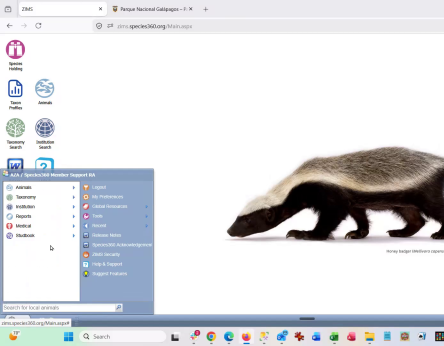
Expand the menu and click My Institutions (or Institution Search).
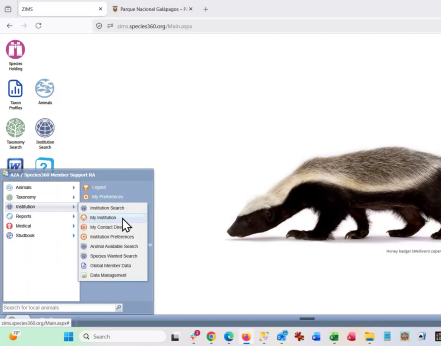
The Institution Search module will open. Click the My Institution tab at the top of the screen.

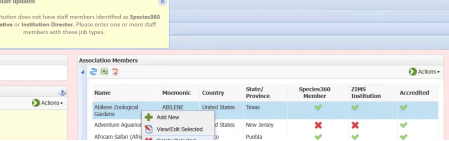
Your institution’s details page will load. The Association Members panel is located on the right side of the page. This panel lists all institutions currently associated with your organization.
Section A: Adding an Institution
Follow these steps to add a new institution to your association member list.
- In the Association Members panel, click the Actions button in the upper-right corner of the panel.
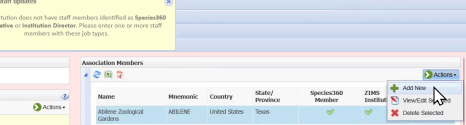
- From the dropdown menu, select Add New.
- The Add Association Members dialog will appear. Click in the Institution field and type the name of the institution you want to add.
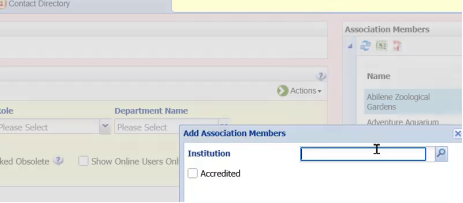
- Type part of the institution’s name or mnemonic (for example, “BATTLE CR”) to search for it.
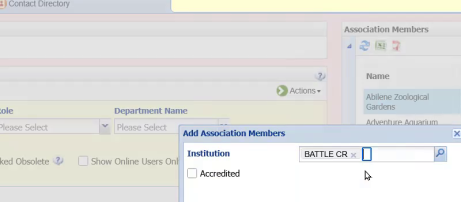
- If the institution holds accredited status within your association, check the Accredited box.
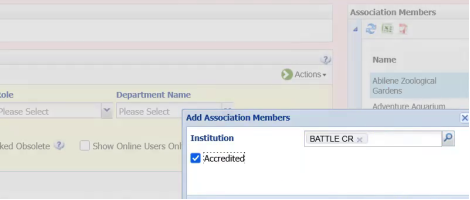
- Click Save to add the institution to your list.
Note: The new institution will appear in your Association Members list immediately after saving.
Section B: Removing an Institution
Follow these steps to remove an institution from your association member list.
- In the Association Members panel, right-click on the institution you want to remove to select it (it will highlight in blue).
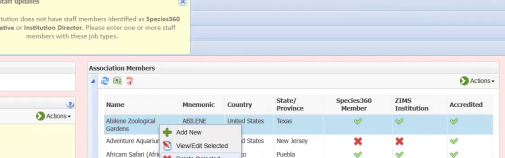
- A menu will appear; select Delete Selected.
- Confirm the deletion when prompted. The institution will be removed from your list.
Note: You must select an institution in the list before Delete Selected becomes active. If no institution is selected, the option will not work.
Revised 17 June 2026